Call or WhatsApp us anytime
Mail Us For Support

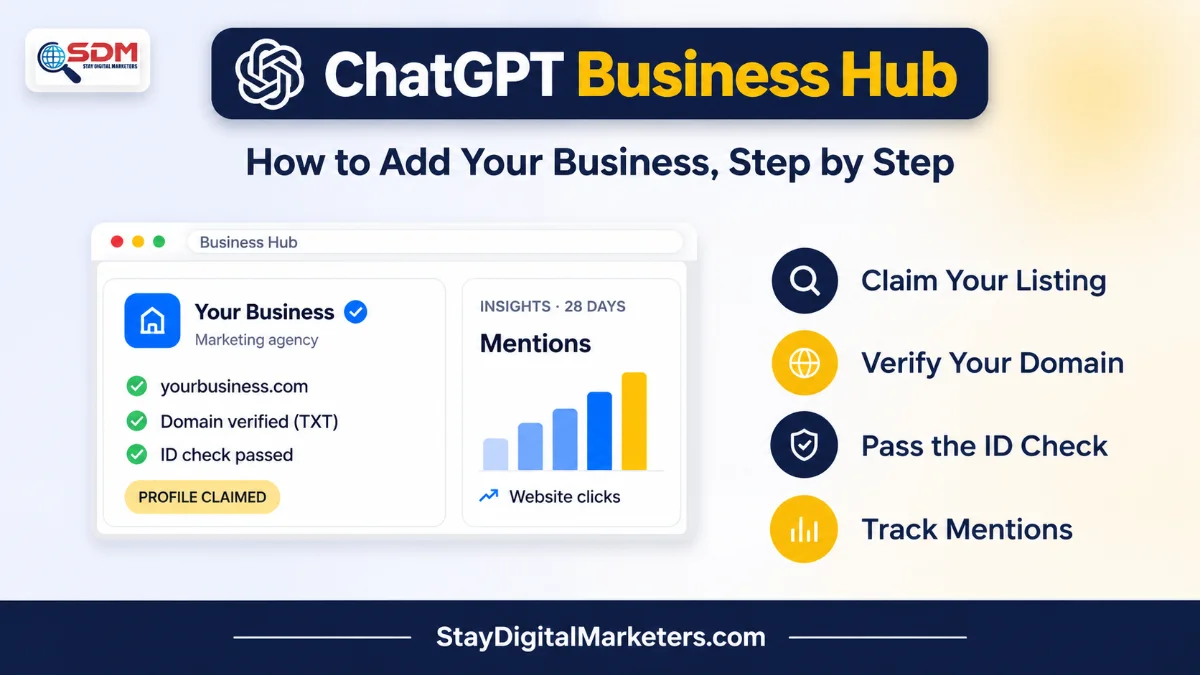
To add your business to ChatGPT, open Businesses in ChatGPT and click Claim your business. Sign in to ChatGPT, search your business name in Business Hub, and select your listing or create a new one. Verify ownership by phone, business email, a DNS TXT record or Shopify, then add your category, description and policies. Finally, pass a Persona ID check. Claiming is free during the beta, and OpenAI reviews each application within a few days.
ChatGPT already talks about your business, whether you claim it or not. It pulls details from your website, directories, reviews and articles, and some of them may be outdated or wrong. On November 10, 2026, OpenAI opened Businesses in ChatGPT in beta. For the first time, companies can claim their profile, correct their information and see how often ChatGPT mentions them.
At Stay Digital Marketers, we registered our own agency in ChatGPT Business Hub this week and captured every screen along the way. This guide walks through the full process with real screenshots, including the DNS step where most people get stuck.
ChatGPT Business Hub is OpenAI’s dashboard for claiming and managing your business profile inside ChatGPT. You open it from the ChatGPT sidebar or at chatgpt.com/business-hub. Think of it as the ChatGPT version of Google Business Profile: one place to control the facts ChatGPT shows about your company.
Business Hub does four jobs:
| Business type | What you can do today |
|---|---|
| Online businesses (websites, SaaS, agencies, online stores) | Claim an existing listing or create a new one wherever ChatGPT is available and verification is supported |
| Local stores and restaurants | Claim an existing US listing; new physical-location profiles go to a waitlist |
| Shopify merchants | Connect the store from Business Hub or the Shopify admin to speed up verification |
| OpenAI Enterprise customers and advertisers | Claim through their OpenAI representative |
| US ecommerce and online service businesses | Everything above, plus a Business Agent |
Eligibility also depends on your industry, location and OpenAI’s integrity checks. The quickest way to know for sure is to search for your business in Business Hub and see which options appear.
The whole process takes about 30 minutes, plus waiting time for DNS and review. Have these ready first:
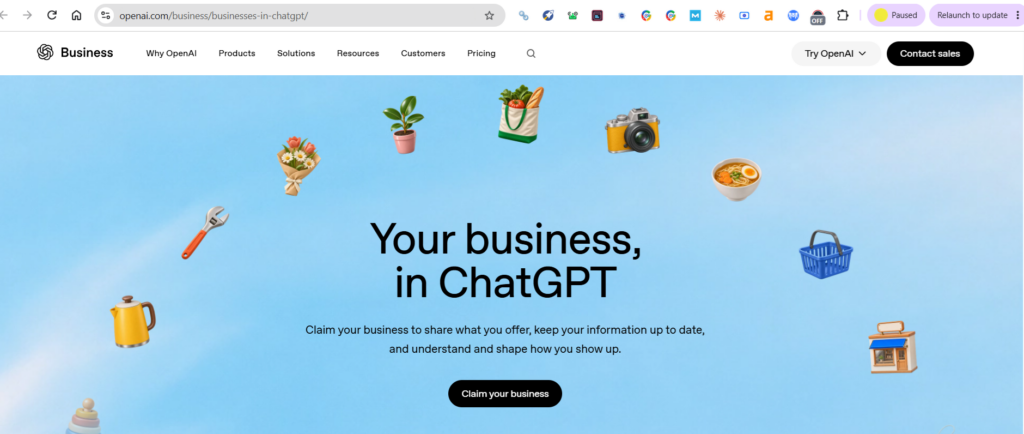
Go to openai.com/business/businesses-in-chatgpt and click Claim your business. This page is OpenAI’s official starting point, and it sends you straight into Business Hub.
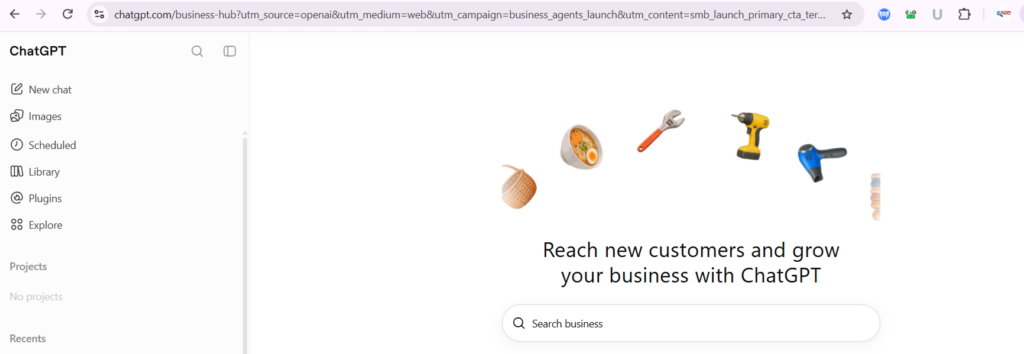
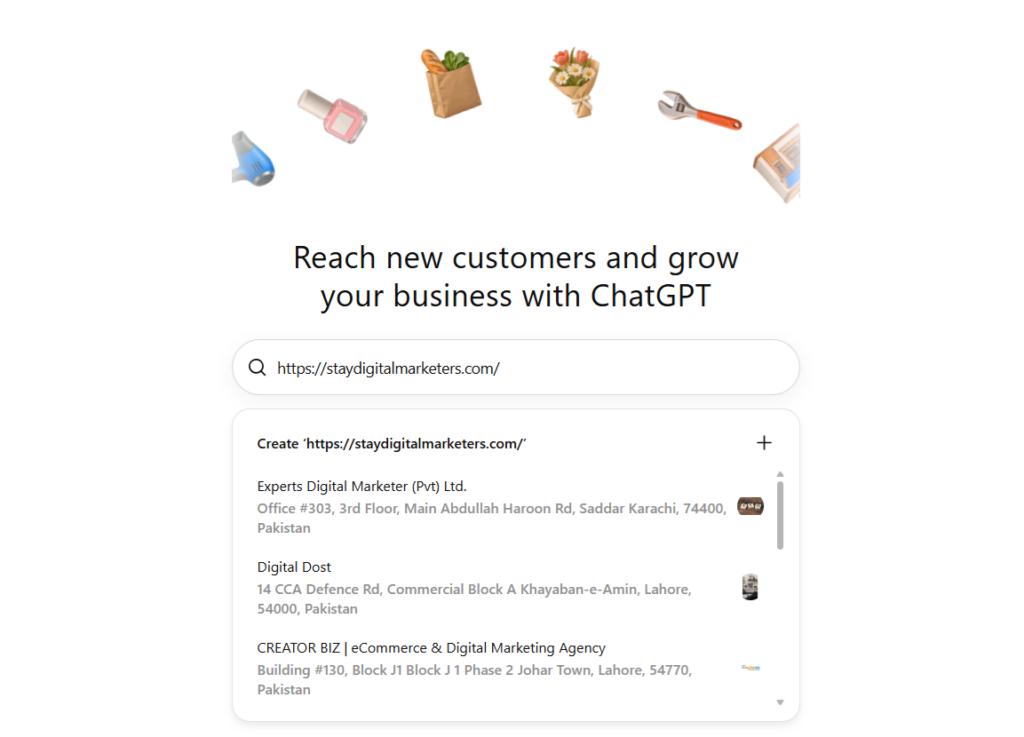
Sign in to ChatGPT with your business account. Business Hub opens with the heading “Reach new customers and grow your business with ChatGPT” and a Search business box. If you land on regular ChatGPT, open Business Hub from the left sidebar or go to chatgpt.com/business-hub.
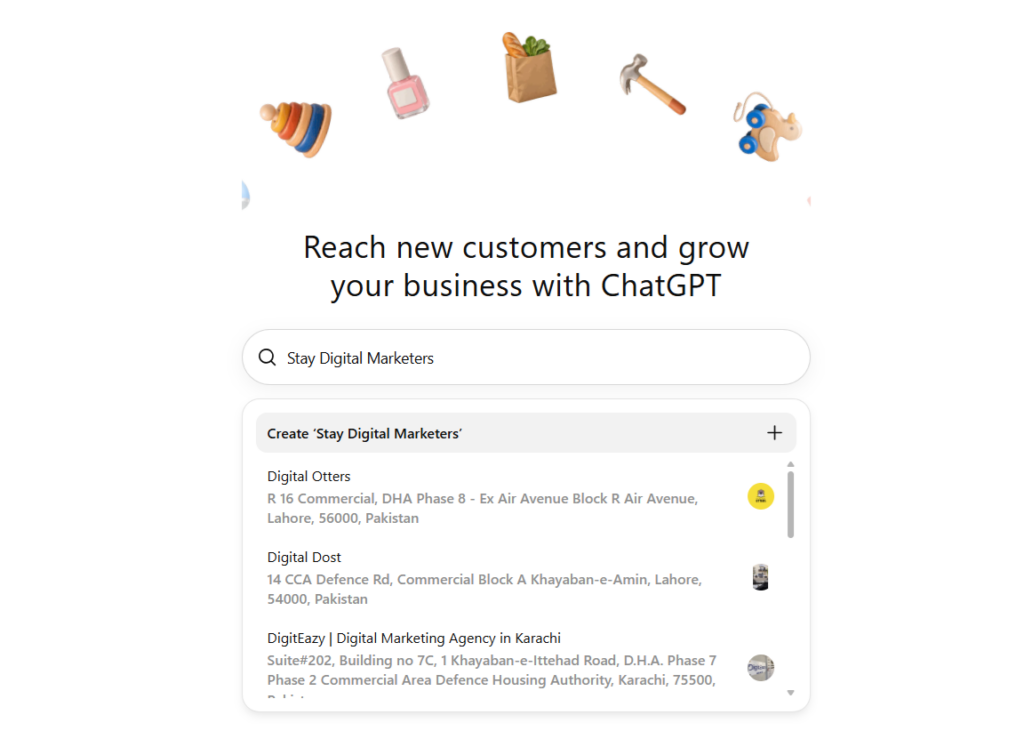
Type your business name in the search box. If your business is already listed, select it. If it isn’t, click Create “Your Business Name” at the top of the results. Check the list carefully: similarly named companies often appear, and you should claim only your own listing.
You can also search by your website URL. If no listing matches, ChatGPT offers to create one for that address.
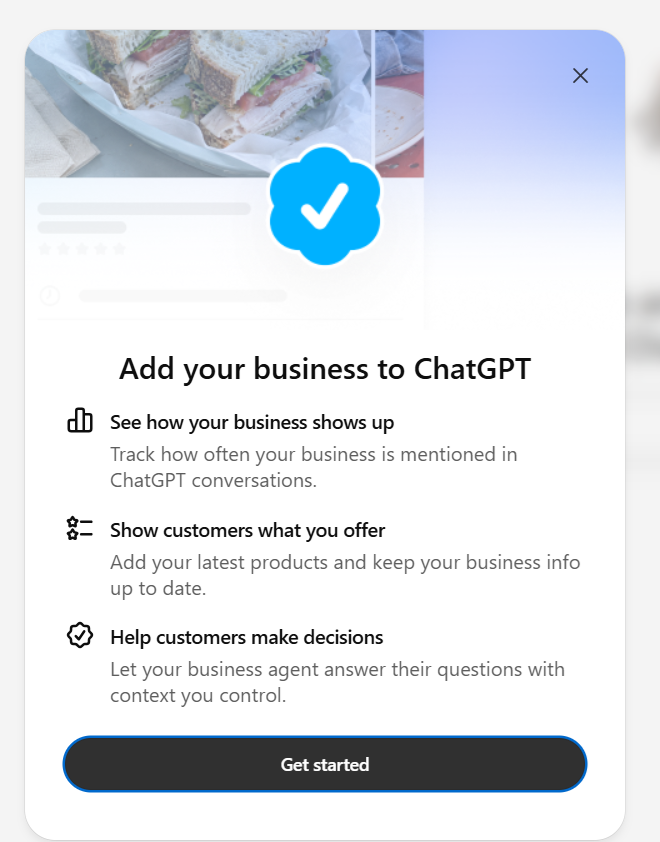
A welcome card explains what you get: tracking how often ChatGPT mentions you, keeping your products and details current, and a business agent that answers customer questions. Click Get started.
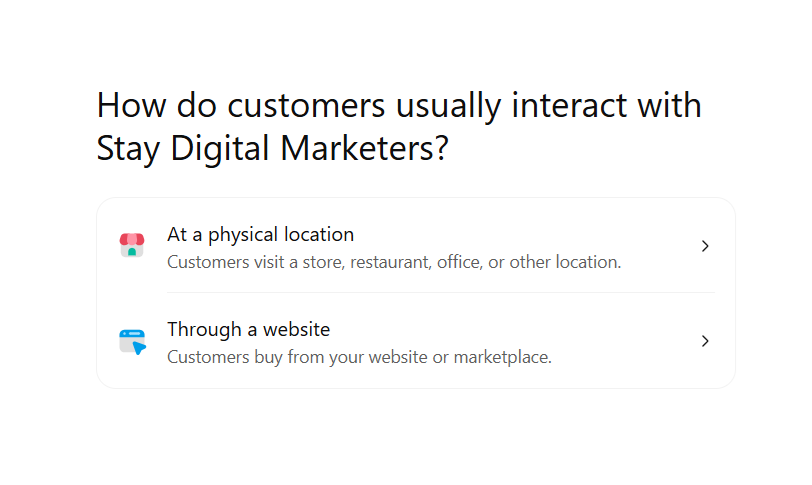
ChatGPT asks how customers usually interact with your business:
Choose Through a website for agencies, SaaS companies, online stores and service businesses. New physical-location profiles are currently placed on a waitlist, so the website route is faster for online businesses.
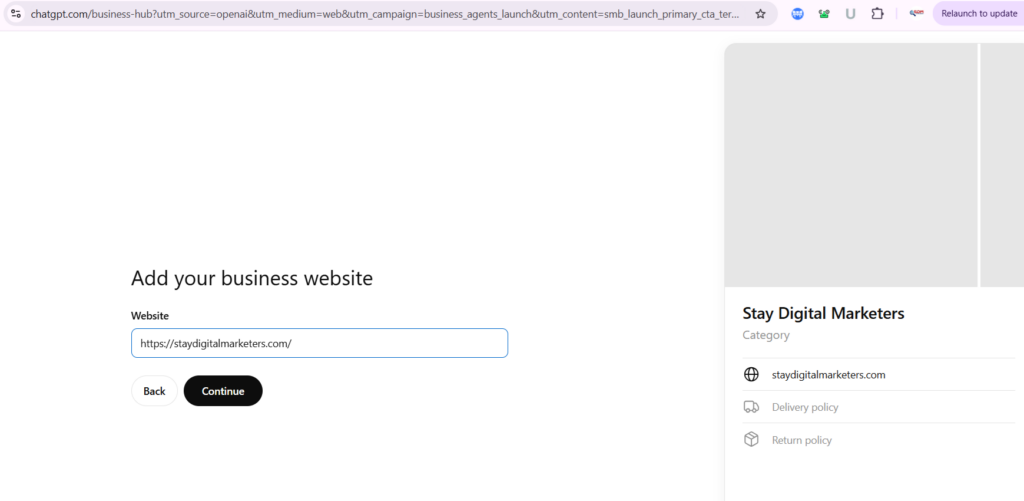
Enter your full website URL, for example https://staydigitalmarketers.com/, and click Continue. The live preview on the right starts filling in your profile as you go.
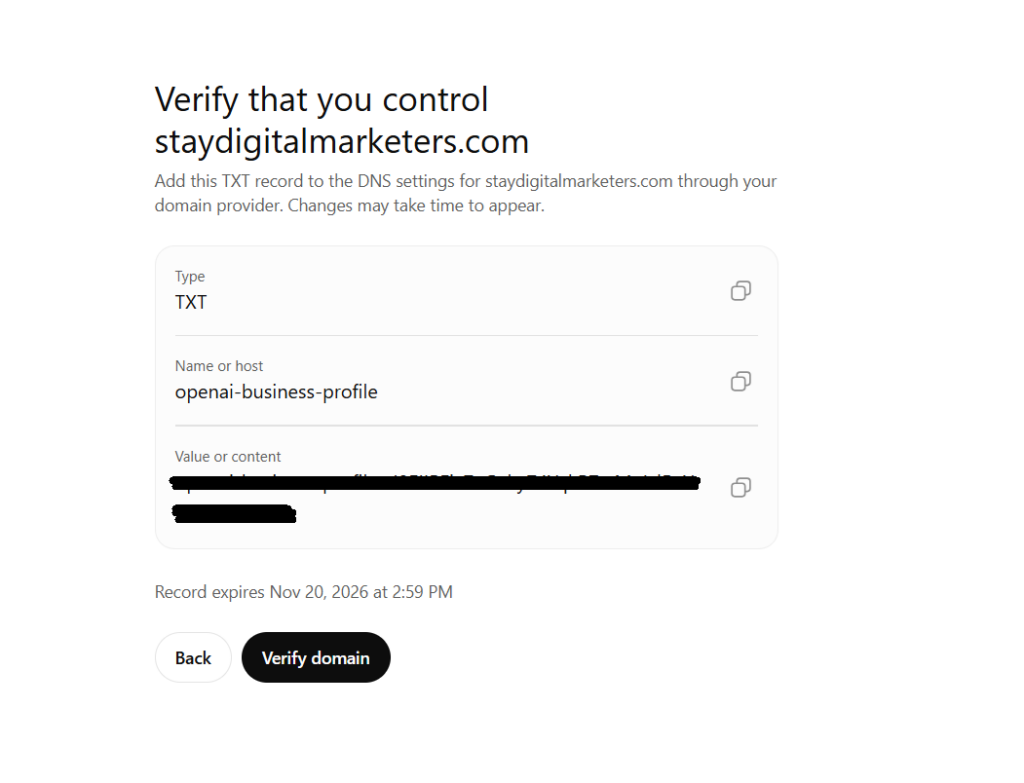
ChatGPT now asks you to prove you control the domain. It shows a TXT record with three values:
| Field | What it shows |
|---|---|
| Type | TXT |
| Name or host | openai-business-profile |
| Value or content | openai-business-profile= followed by a unique code |
Use the copy icons instead of typing, because the code mixes letters that look alike. The record expires after 24 hours, so finish the DNS step the same day. Keep this tab open.
No access to your DNS? The domain record is only one route. Depending on your business, ChatGPT may also offer a code sent to your business phone number, a code sent to a business email address (usually one on your own domain, not Gmail), or a connection to your Shopify store. Pick whichever option appears for you. Every step after verification is the same.
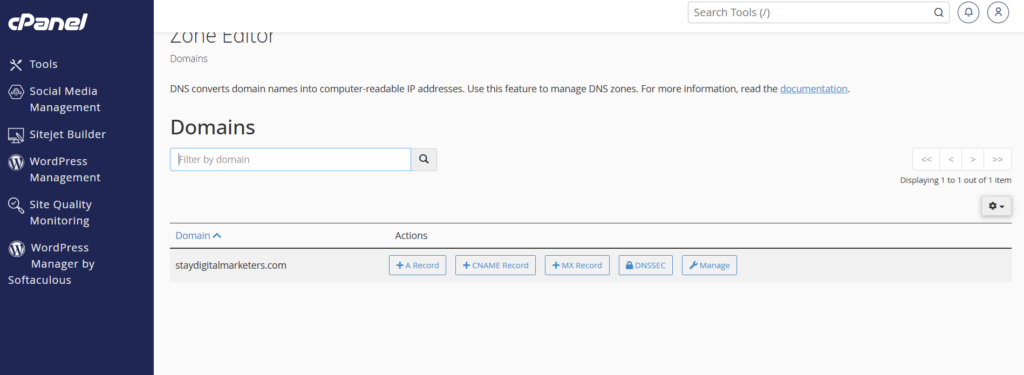
First, find out where your DNS is managed. In your domain registrar, check the nameservers. If they point to your hosting company (custom DNS), add the record in your hosting control panel, not at the registrar. A record added in the wrong place is ignored.
In cPanel:
Wait 15 to 30 minutes, return to ChatGPT and click Verify domain. If it fails, wait a little longer and try again, as DNS changes can take a few hours.
This record does not affect your website, email or hosting. It’s a text note that only confirms ownership, the same method Google Search Console uses. Keep it in place after verification.
Once the domain is verified, ChatGPT asks you to help people get to know your business:
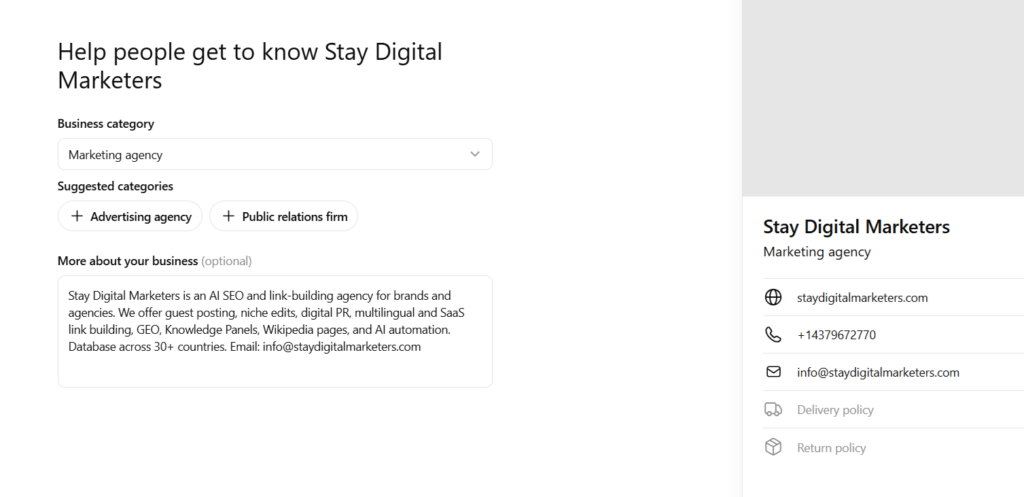
Copy the template that fits your business, replace the brackets, and check that the final text stays under 300 characters. Specific services, audiences and places help ChatGPT match you to the right questions.
Agency or service business
[Agency name] is a [specialty, e.g. SEO and PPC] agency helping [client type, e.g. ecommerce and SaaS brands] grow [result, e.g. organic traffic and leads]. Services: [service 1], [service 2], [service 3] and [service 4]. Serving clients in [markets]. Email: [email]
SaaS or software company
[Product name] is a [category, e.g. project management] software for [audience, e.g. remote teams of 5 to 50]. Key features: [feature 1], [feature 2] and [feature 3]. Integrates with [tool 1] and [tool 2]. Free trial: [yes/no]. Plans from [price]/month. Support: [email]
Online store
[Store name] sells [products, e.g. handmade leather bags and wallets] for [audience]. Known for [differentiator, e.g. full-grain leather and lifetime repairs]. Ships to [countries] in [X] days. Free shipping over [amount]. Returns within [X] days. Support: [email]
Local business
[Business name] is a [business type, e.g. family dental clinic] in [city, area] offering [service 1], [service 2] and [service 3]. Open [days and hours]. [Parking, booking or language note]. Book online at [booking page] or call [phone].
Avoid slogans like “the best agency in town.” ChatGPT repeats facts more accurately than marketing claims, and a vague line gives it nothing to match.
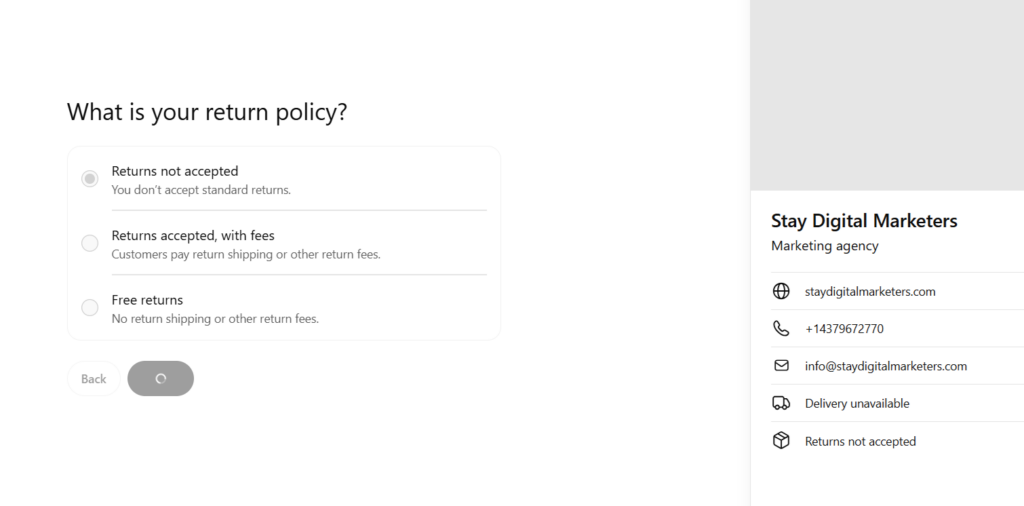
Next, add your business phone and email, then answer the delivery and return questions. Service businesses should mark delivery as unavailable and choose Returns not accepted, since nothing is shipped or returned. This setting covers physical returns only. A refund or replacement guarantee should live on your website. Click Submit.
Your Business Hub dashboard now shows the profile with a DRAFT label. A banner asks you to verify your identity with a government-issued ID, which is required before you can edit details, see insights or publish a business agent. Click Verify.
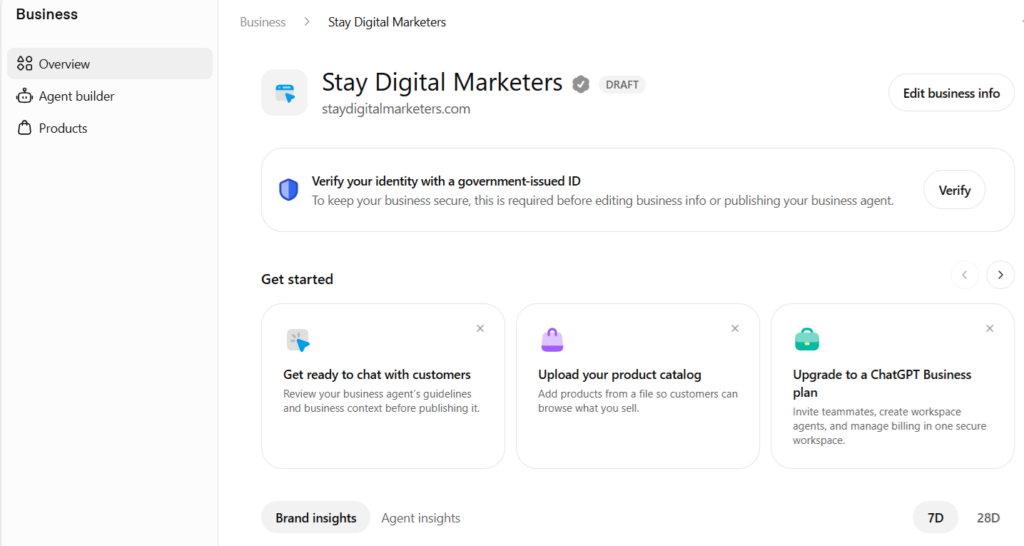
OpenAI uses Persona for identity checks. Enter your business details (name, DBA name if you have one, location and whether you are a sole proprietor or an entity). Then choose an ID type, such as passport, national ID or driver’s license, and follow the prompts to photograph it.
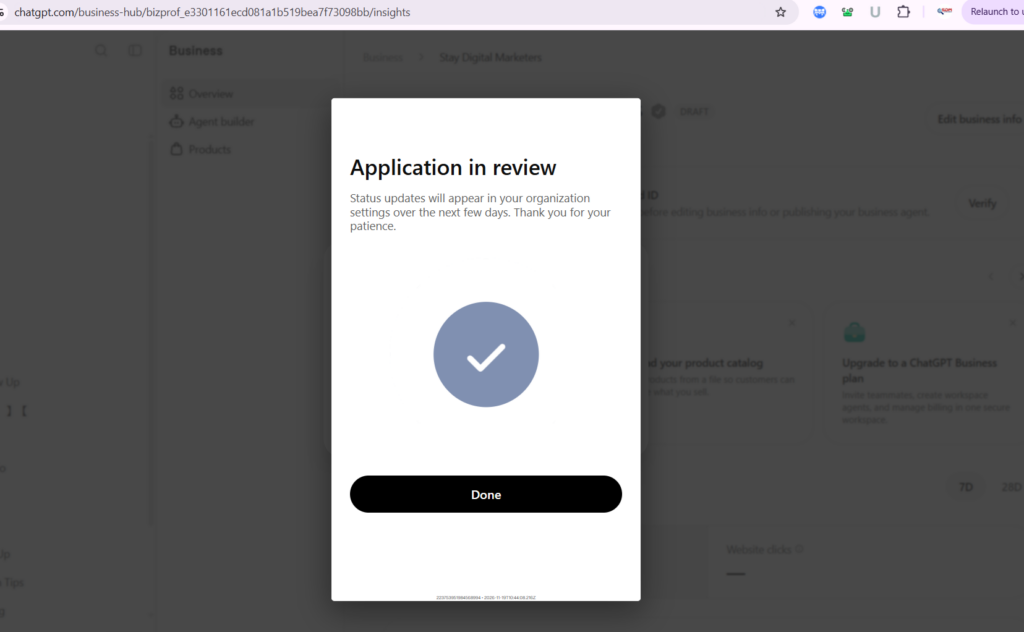
After you submit, ChatGPT shows Application in review. OpenAI says status updates appear in your organization settings over the next few days, so watch your inbox, including spam, for an email from OpenAI.
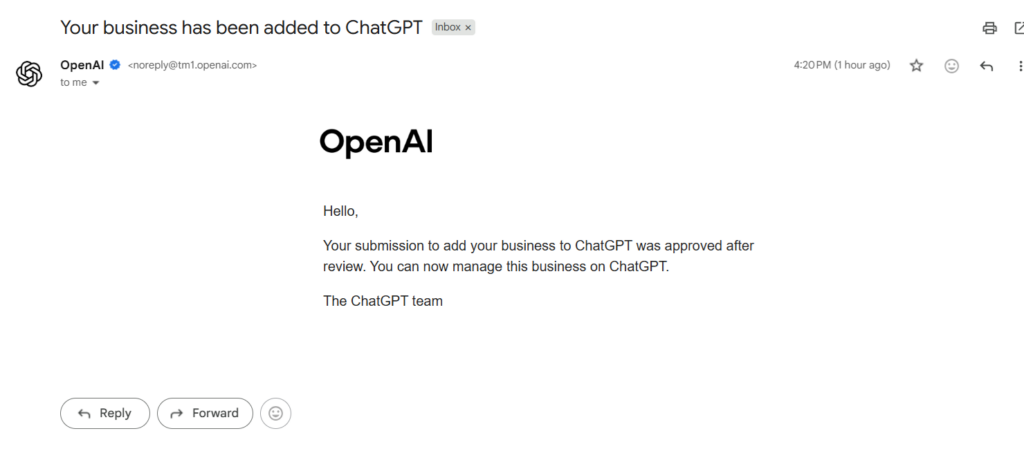
Once your claim is approved, OpenAI sends an email with the subject “Your business has been added to ChatGPT.” It confirms the submission was approved after review and that you can now manage the business on ChatGPT. Our own claim for Stay Digital Marketers was approved the same day, less than an hour after we submitted it.
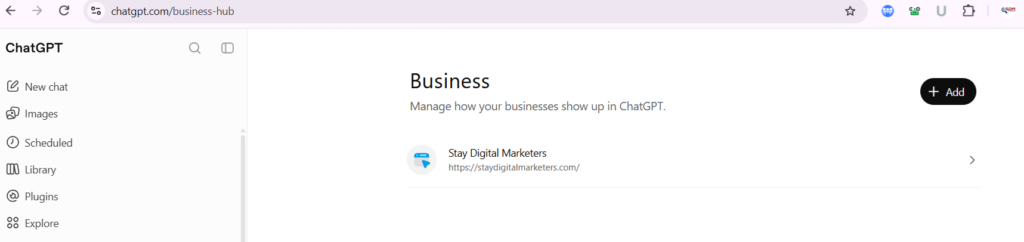
To see your approved business, go to chatgpt.com/business-hub while signed in with the same ChatGPT account, or click Business Hub in the ChatGPT sidebar. The Business page lists every business you manage, with its name and website. Click your business to open its profile, where you can complete any remaining identity check, edit your details and start reading your insights.
Once OpenAI approves your claim and your Persona check, the DRAFT label goes away and you can manage your profile:
As soon as our claim was approved, the DRAFT label disappeared and Business Hub showed our first insights. For the 28 days from October 22 to November 18, ChatGPT mentioned the Stay Digital Marketers website 1,109 times and sent 8 website clicks. The Website access panel also confirmed that ChatGPT can reach our site.
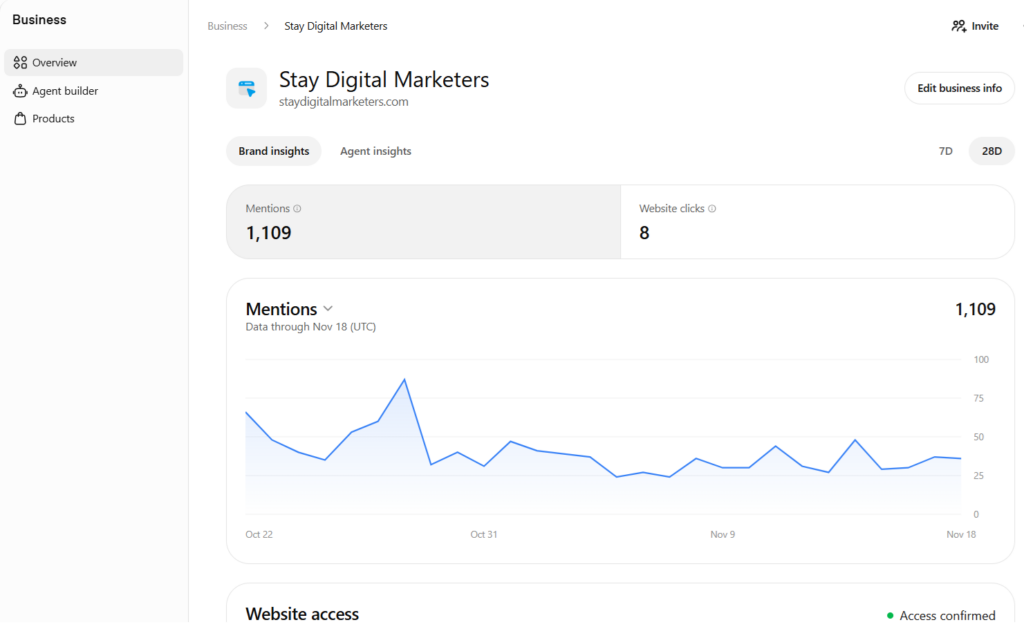
Three things stood out:
One honest limit: OpenAI says claiming does not guarantee higher placement or more sales. Your profile fixes the facts. Whether ChatGPT recommends you still depends on what the rest of the web says about you, including your website, reviews, press coverage and the authoritative sites that link to and mention you. That is where AI SEO and GEO and link building come in.
| Problem | Cause | Fix |
|---|---|---|
| Verify domain keeps failing | The TXT record was added at the registrar while the nameservers point to your host | Add the record where your nameservers point, usually your hosting cPanel |
| “You must specify a valid IP address” in cPanel | The record type was left on A | Change the Type dropdown to TXT |
| Record saved but not detected | DNS hasn’t updated yet, or the name was doubled (openai-business-profile.yourdomain.com.yourdomain.com) | Wait up to a few hours, and enter only openai-business-profile as the name |
| Code no longer works | The TXT record expired after 24 hours | Click Back and generate a new record |
| Your listing shows “Contact support” | The listing is locked | Select Contact support to request access |
| Someone else already claimed your business | A former employee, agency or impostor claimed it | Use Dispute ownership in Business Hub |
| Profile claimed under a personal account | The wrong ChatGPT account was signed in | Add the business account as a teammate, or contact support to transfer it |
Yes. Claiming and managing your business profile is free during the beta, and you don’t need a ChatGPT Plus plan, an ads account or an Enterprise agreement. OpenAI has not ruled out charging for some features later.
The form itself takes about 30 minutes. Domain verification depends on DNS and can take from a few minutes to a few hours. After you submit, OpenAI says status updates appear within a few days, but it can be much faster: our claim for Stay Digital Marketers was approved by email less than an hour after submission.
ChatGPT offers one or more of these methods, depending on your business: a code sent to your business phone, a code sent to your business email, a DNS TXT record on your website domain, or connecting your Shopify store. After the claim is approved, the profile admin also completes a Persona identity check with a government photo ID. OpenAI’s setup guide lists the current options.
No, not directly. OpenAI states that claiming does not guarantee higher placement or sales, and ChatGPT’s recommendations stay independent. Claiming makes sure the facts are right. Recommendations depend on how well your website answers questions and how often trusted sites mention and link to you.
Google Business Profile controls how you appear in Google Search and Maps, with reviews, photos and posts. ChatGPT Business Hub controls the facts ChatGPT uses about you and shows mentions and clicks from ChatGPT conversations. You need both. A consistent name, description and contact details across Google, ChatGPT and your website help AI systems treat your brand as one trusted entity, the same principle behind a Google Knowledge Panel.
Yes, if your business is located where ChatGPT is available and OpenAI supports verification there. Our agency is registered in Canada, and the full flow, including domain verification, worked for us. The Business Agent feature is the main part that is US-only for now.
The person who claims must be authorized to represent the business, and the Persona ID check is tied to that person. The cleanest setup is for the client to claim the profile with a business account, then invite the agency as a teammate.
If you run an online business, click Create to add it as a new listing. Local stores and restaurants can currently claim only an existing US listing, and new physical-location profiles go to a waitlist.
No. A TXT record only stores text that services read to confirm ownership. It doesn’t change where your website or email points. Just make sure you add a new record and don’t edit your existing A, CNAME or MX records.
No. Keep it in your DNS. Verification services can check again later, and the record costs nothing to leave in place.
A mention is counted when ChatGPT references your business website in an answer. For an online business, naming the brand without referencing the website does not count as a mention.
A Business Agent is a labeled chat that answers customer questions about your products and policies inside ChatGPT, based on information you provide and guidelines you control. It is currently available to eligible US ecommerce and online service businesses.
ChatGPT Business Hub gives you control over the facts ChatGPT shares about your business, plus the first real data on how often ChatGPT sends people your way. It’s free, it takes about 30 minutes, and the only tricky part is the DNS step. Claim your listing before someone else does.
The profile is only the starting line. ChatGPT recommends the businesses that the rest of the web trusts: sites with clear service pages, consistent entity data and mentions on authoritative publications. Stay Digital Marketers helps brands and agencies build exactly that through AI SEO, GEO and link building.
Want to know how your brand shows up in ChatGPT and AI Overviews today? Email us at info@staydigitalmarketers.com or contact our team.

Filza Taj is an MPhil in Human Resources-turned SEO Specialist, Content Strategist, and Digital Marketing Consultant with over 5 years of experience helping businesses in 30+ countries grow online. As the Founder of Stay Digital Marketers (staydigitalmarketers.com), she delivers results-driven solutions in link building, guest posting, PR distribution, niche edits, multilingual backlinks, and content marketing. She publishes daily SEO insights and actionable strategies to help brands strengthen their online presence, attract the right audience, and convert clicks into loyal customers.
Filza@staydigitalmarketers.com
Stay Digital Marketers
Grow Your Brand on Google, in AI Answers and on Autopilot
SEO, Link Building and AI Automation by Stay Digital Marketers
Get Your Growth Plan →